
Getting Started (Field Staff)
This tutorial is for the contractors and workers (who we refer to as Field Staff) who are new to TrackTrade and want to get up and running ASAP. We will get the app installed on your device, get you logged in and then walk you through typical usage.
'I don't really even know what TrackTrade is and why I need to use it.'
To sum it up, our TrackTrade app lets you digitally capture the evidence of the work you are doing. This way, all parties stay on the same page and you get the credit and payment that you've rightfully earned with no room for argument.
Check out our TrackTrade Overview to learn more.
Installing the TrackTrade web app
You're going to need 3 things to proceed:
- the URL of the TrackTrade portal
- your login
- your password
Note: The URL should look like {organisation}.tracktrade.co.uk (e.g. johnsrepairs.tracktrade.co.uk).
If you don't have these then please contact your office manager.
You can use an Android or iOS phone or tablet for this and we recommend Chrome or Safari as your web browser.
Android
- Open your browser and head to {organisation}.tracktrade.co.uk

- A popup prompting you to add TrackTrade as an app to your home screen should appear. Tap it!
Note: If the popup at the bottom of the screen does not appear then tap the 3 dots menu and look for 'Add to Home Screen' and select that.
iOS
- Open your browser and head to {organisation}.tracktrade.co.uk

- Tap the share icon at the bottom and select 'Add to Home Screen'.
TrackTrade is now installed as an app on your phone and can be selected from your home screen or app drawer!
If at any time you are prompted to give access to Location data then please accept to allow TrackTrade to function properly. Learn more here.
Logging in
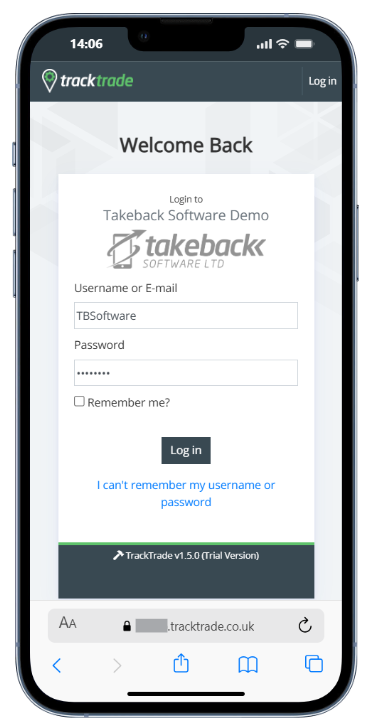
- Open the TrackTrade app and enter the username and password that should have been provided to you.
The Dashboard
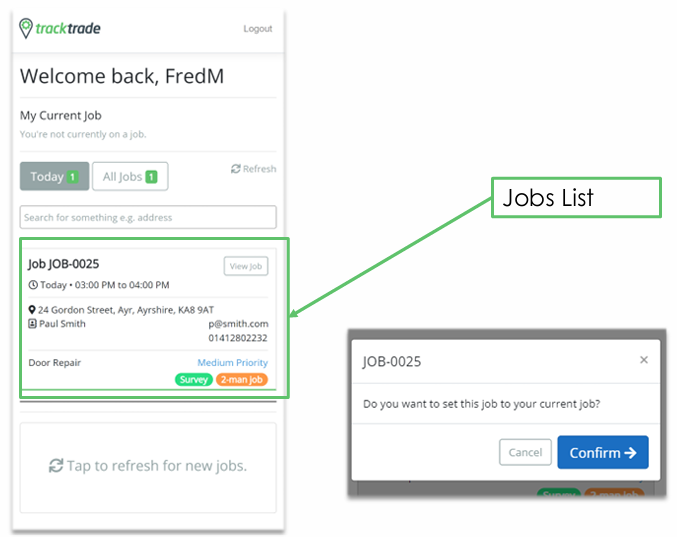
You're in! Welcome! Upon login you'll be presented with the Dashboard. At the top you can see your currently active Job (if any) and, below, a full list of the Jobs currently assigned to you is shown by default. Tapping 'Today' limits the list to only the Jobs to be worked on the current date.
Tip: You can always return to this page by tapping the TrackTrade logo at the top.
Working a Job
We're now going to go through the typical steps involved in working a Job. The features and flexibility of TrackTrade are extensive so we can't cover everything but as the title says we're just here to Get Started!
1: Accept a Job
From your list of Job Cards, choose a Job by tapping the centre of the card you want and then 'Confirm'.
2: Travel to the Job site
You've accepted this Job and are now considered to be travelling to the given Job site.
You will be presented with the Job Details page but most of the buttons and functionality is greyed out for now. They will activate after your travel is complete so don't worry about them for now.
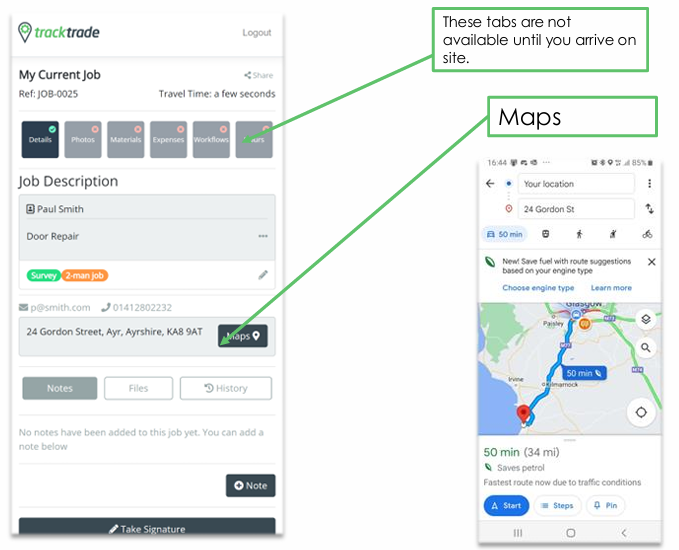
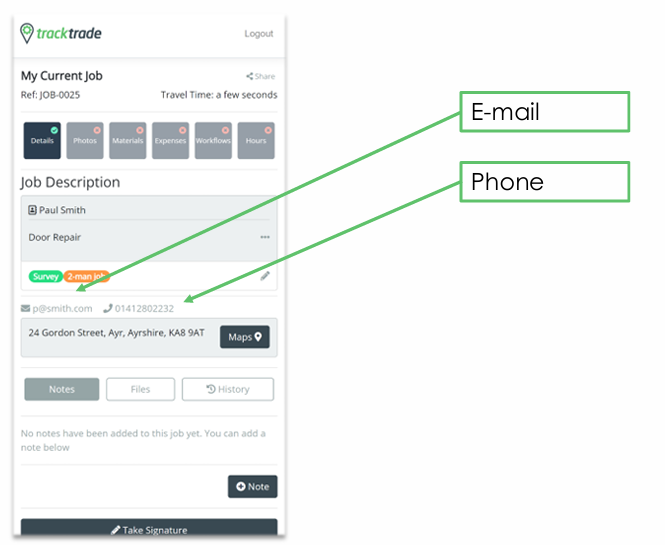
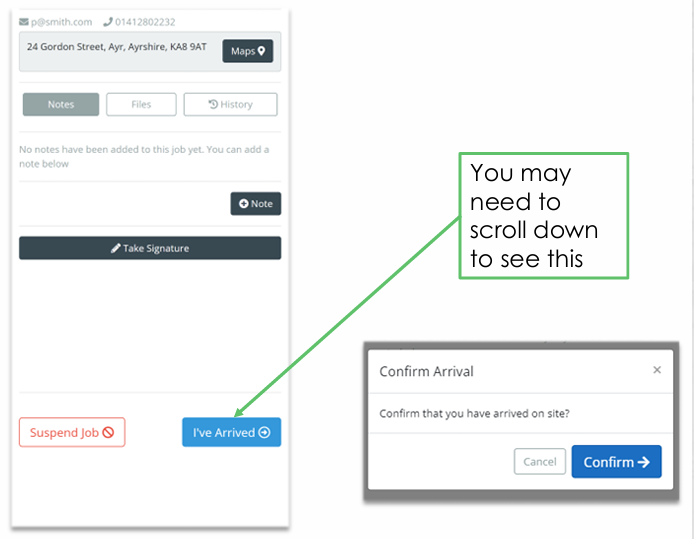
The destination address can be seen here and a Map button is provided which should bring you to your device's default gps/navigation app (eg Google Maps or Apple Maps) along with the address!Customer contact information is available here as well should you need to reach out them at this stage and you can also tap these to quickly bring up your email or phone call app.
Once you've arrived at the Job site, simply hit 'I've Arrived' and then 'Confirm'.
3: On Site
Now that you're on site, those greyed out sections are now active so you are free to get on with the task at hand and use TrackTrade to record the evidence of your work as you go.
You might use every section or you might only use a few, it depends on what your office manager expects from you so reach out to them if you're not sure.
- Details - View job info, add notes, get signatures.
- Photos - Take before and after photos of the work.
- Materials - Add materials used.
- Expenses - Add your expenses.
- Workflows - Complete job-specific checklists.
- Hours - Record your hours for the Job.
4: Record your hours
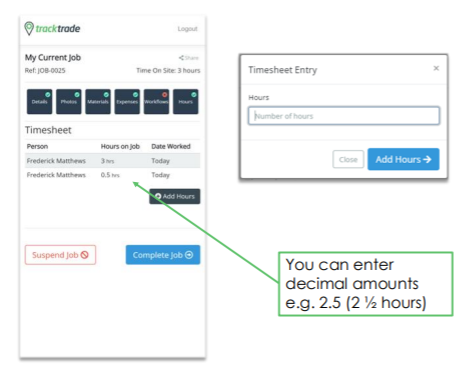
No matter what other Job evidence you've collected, you will always want to finish up by entering in your hours worked.
5: Complete the Job
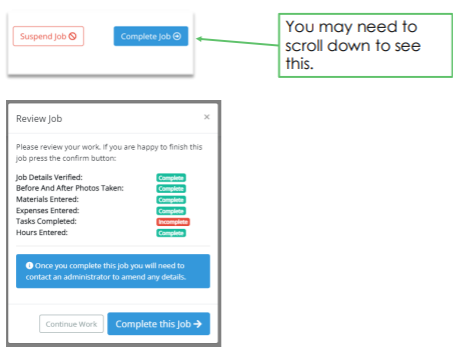
Finalise the Job by selecting Complete Job and if you're happy with the summary provided then confirm it and you are done!
In this article we have gotten TrackTrade installed on your device and built confidence in using it with a quick tour.