
Workflows
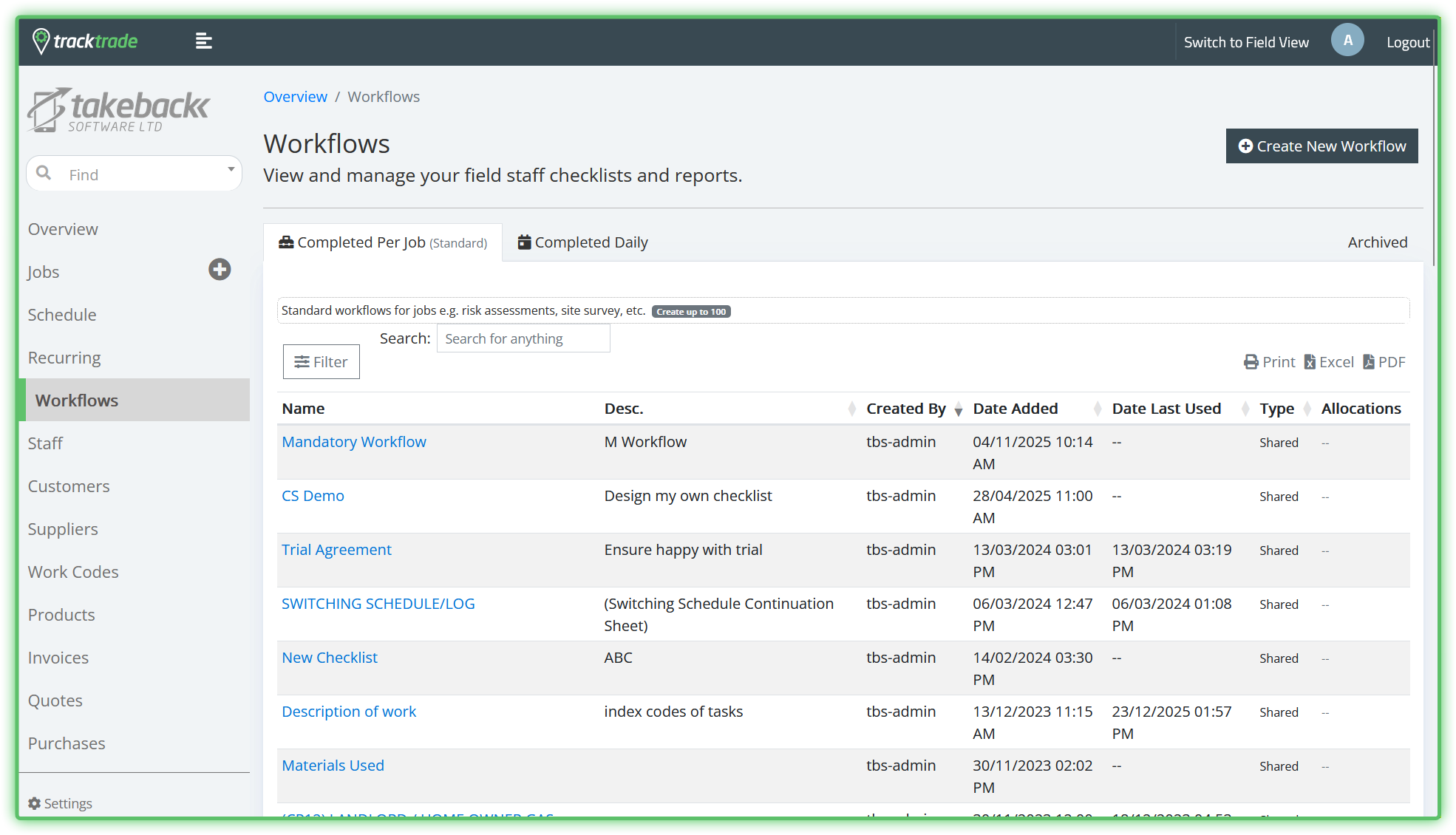
This section allows you to view, edit and create Workflows.
Reminder: A Workflow is a custom per-Job checklist for your Field Staff to complete.
In This Article
Overview
There are 3 tabbed views available here for viewing all Workflows currently in your system. There is also a button at the top right to create new Workflows.
Creating Workflows
Create New Workflow
Hit the Create New Workflow button at the top right to open the Add New Workflow form.
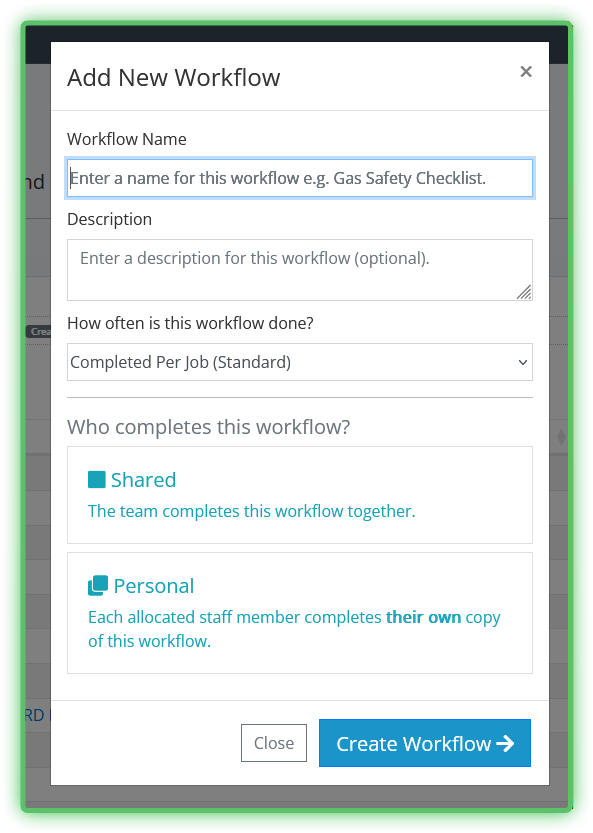
The name and description fields are self-explanatory.
How often is this workflow done?
Completed Per Job - The most common type of Workflow. This Workflow must be attached to a Job.
Completed Daily - These Workflows are NOT associated with a specific Job. Once created, these Workflows are available to chosen Field Staff in the Daily Checklists section of their app.
Who completes this workflow?
Note: This question is only shown when choosing the Completed Per Job option.
Shared - All Staff assigned to a Job can contribute to a single, shared copy of the Workflow.
Personal - All Staff assigned to a Job must complete their own copy of this Workflow.
If you choose Shared then you can finish creation by hitting Create Workflow.
If you choose Personal or Completed Daily, you will be asked one more question:
Who do you want to complete the Workflow?
By default, you can auto-assign a copy of the Workflow to all Staff on the associated Job.
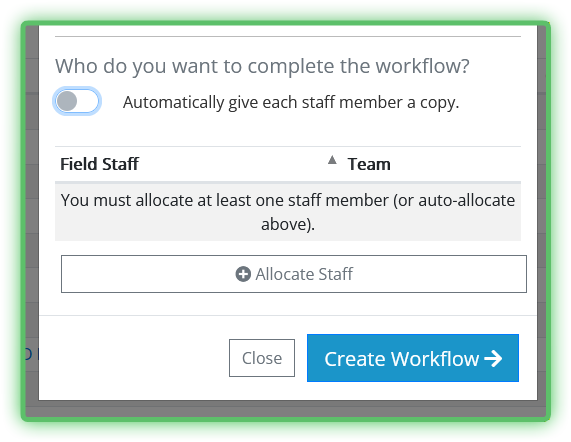
By unchecking this option, you can select specific Staff members with the Allocate Staff option.
Viewing Workflows
Selecting any Workflow in a table brings you to its Workflow Profile page for viewing and editing details.
Workflow Table Views
Completed Per Job (Standard) - Default view. Lists all the standard Workflows in your system.
Completed Daily - Lists all the Workflows that are marked as needing completed daily.
Archived - All Workflows that you wish to hide from your active system.
Each table view can be searched through and filtered. The data currently shown on your table can also be exported either directly to print, to an Excel sheet or to a PDF using the controls to the right.