How To Add Training IDs to Staff Profiles
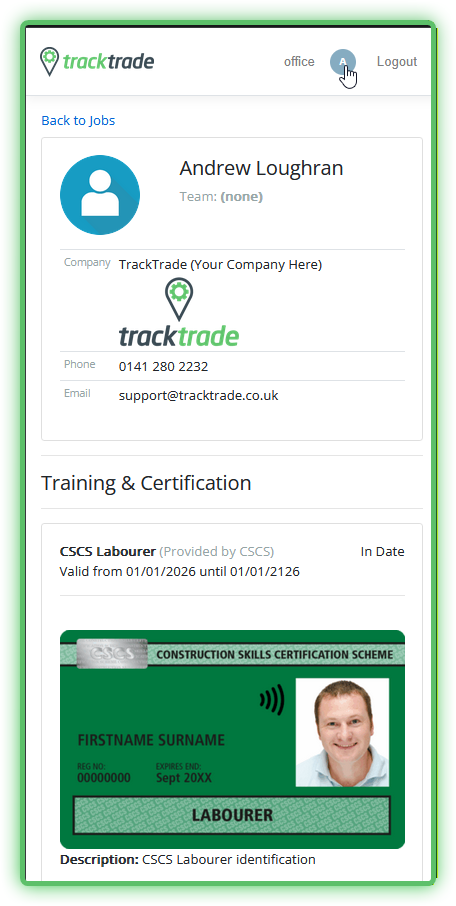
A quick how-to on getting identification cards uploaded onto a Staff Profile that they can then produce on site through the app.
Some common examples would be Company ID, a CSCS card for general construction certification or more industry-specific certs like an ECS card for electricians.
To upload you will need a digital copy of the ID. Also note that only admins can upload this information so if you are a contractor you should contact your office to ask them to take these steps.
Disclaimer: This feature is provided as a convenience and should not be considered a replacement for your physical card or digital app.
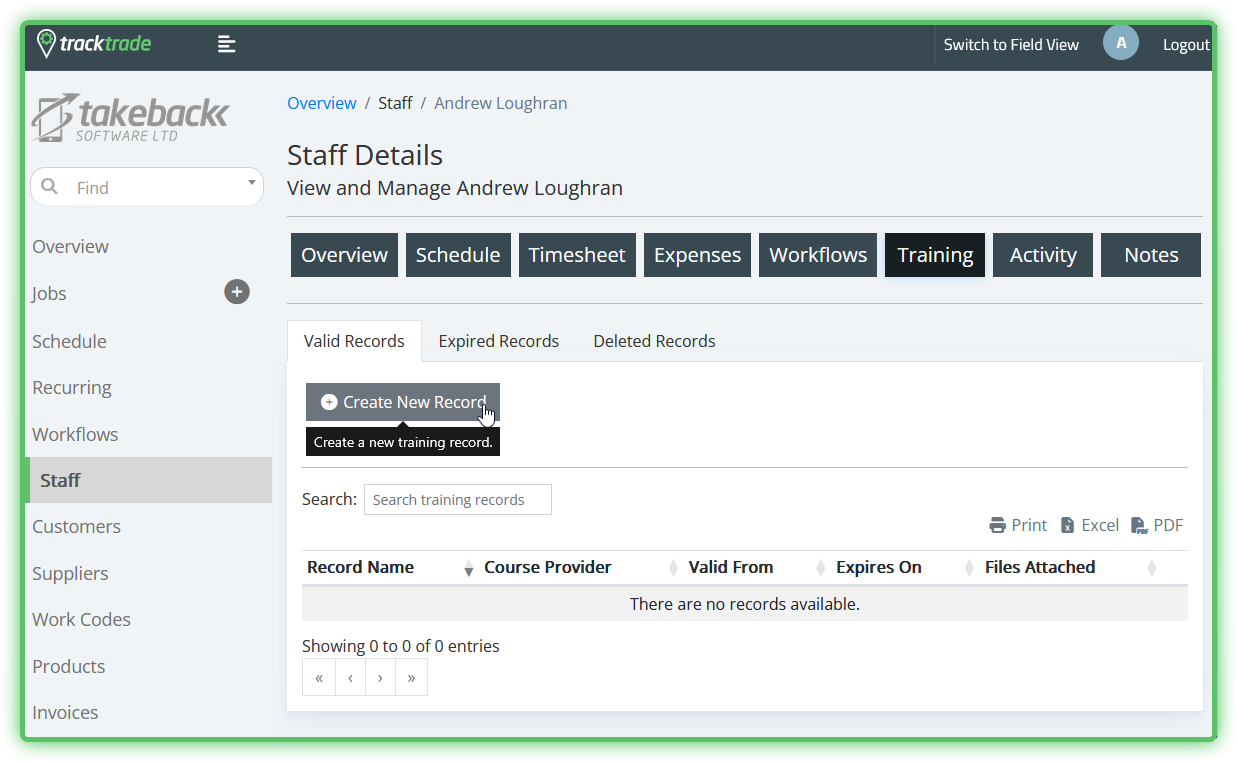
- From the Office side of the app, head to the Staff section, choose a Staff profile then select the Training tab. Hit Create New Record.
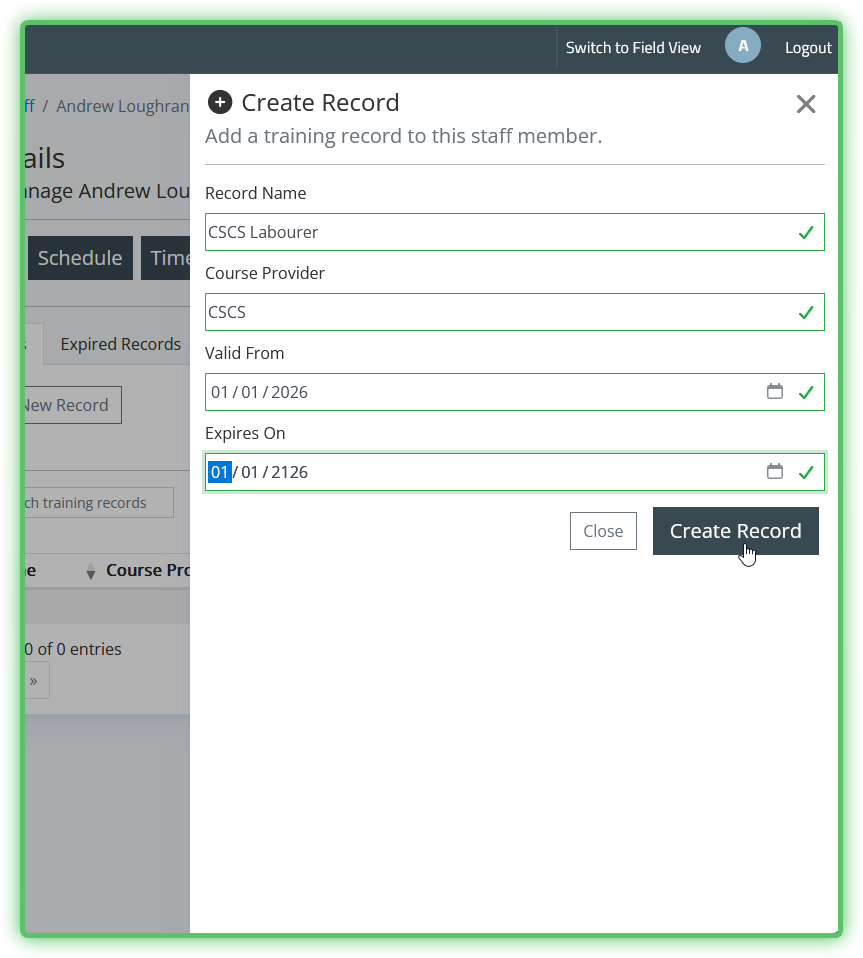
- Fill in the form as required.
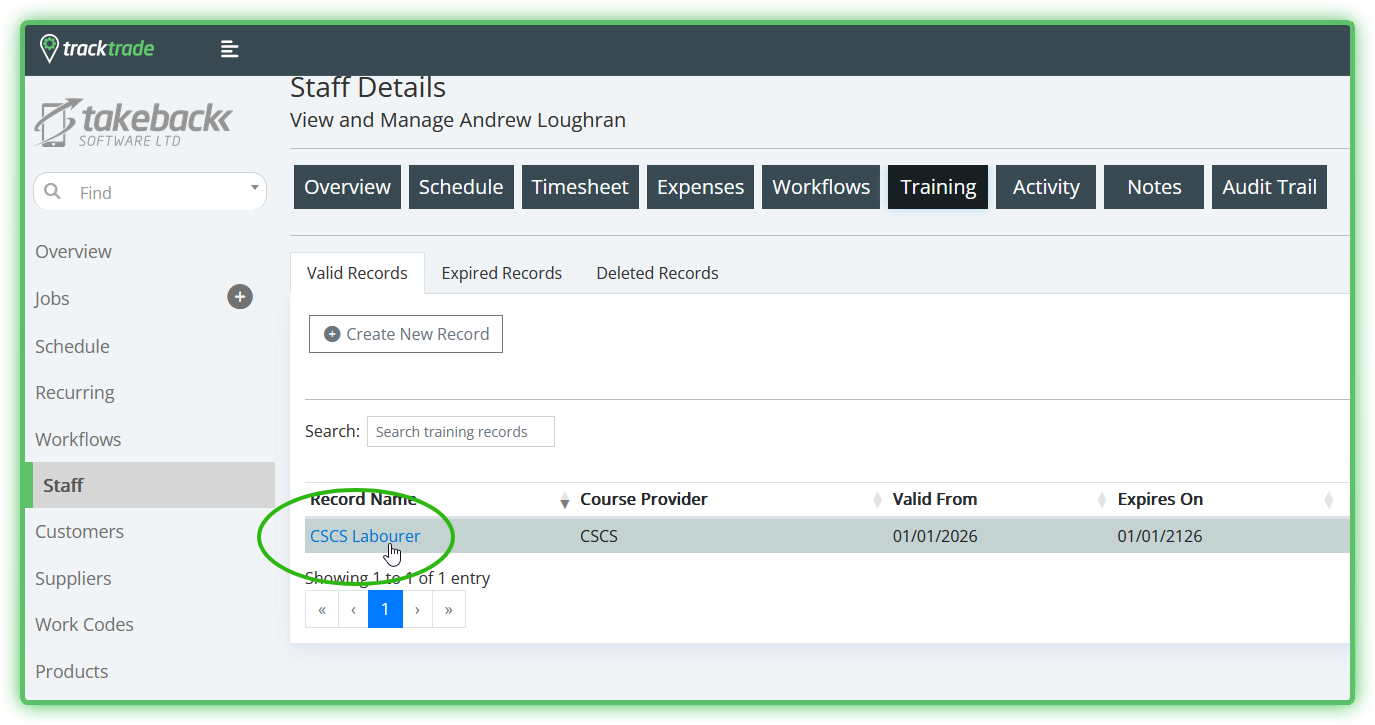
- Next you click into the training record itself.
- Select Notes / Files then the Files tab. Hit Attach File to open your system's file picker.
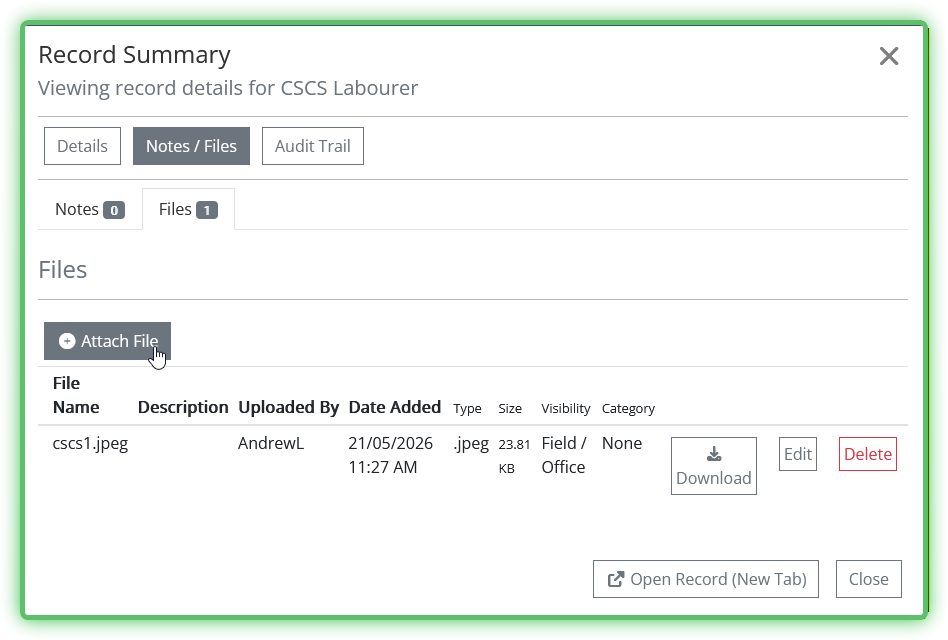
JPEG and PNG files are the preferred format for the ID to display properly. Other formats can be uploaded but will not display and only a link to download will be provided to operatives.
- Done! On the field side of the app, the operative can view their profile to see all uploaded IDs. All they need to do is tap their profile icon at the top right of their device.