
Lesson 2: A Quick Tour
Office Basics Course
- Lesson 1: Logging in to TrackTrade
- Lesson 2: A Quick Tour
- Lesson 3: Creating Customers and Staff
- Lesson 4: Creating Your First Job
In This Article
In this 2-minute tutorial we will perform a very quick tour of TrackTrade and a few of its core features.
Overview Page
The Overview page is the first thing you will always see upon logging in. It serves as a great visual of the status and progress of your currently active Staff and Jobs.

Learn more on our Office Dashboard Overview page.
Sidebar
On the left you also have the Sidebar which is your main method of navigating to different sections. Each section presents a table of all of that item (eg. all Jobs or all Quotes) which you can filter and search to find what you need.

A general search is available at the top of the Sidebar and there is also a Settings section at the bottom for general TrackTrade options.
Field View

At any point you can also click the 'Switch to Field View' option at the top right. Field Staff (your workers/contractors) can also login to TrackTrade but they have a different and more focused view so it's valuable to let you see what they see at any point!
Note: This view switches your account to the view that only your account would see were you to log in as a Field Staff agent. You cannot view/act as someone elses account.
Viewing Jobs/Staff/Customers
TrackTrade has an extensive feature set but it's not all needed depending on your use case. However, you will always have Jobs which need to be managed and completed by Staff on behalf of Customers so let's check those out!
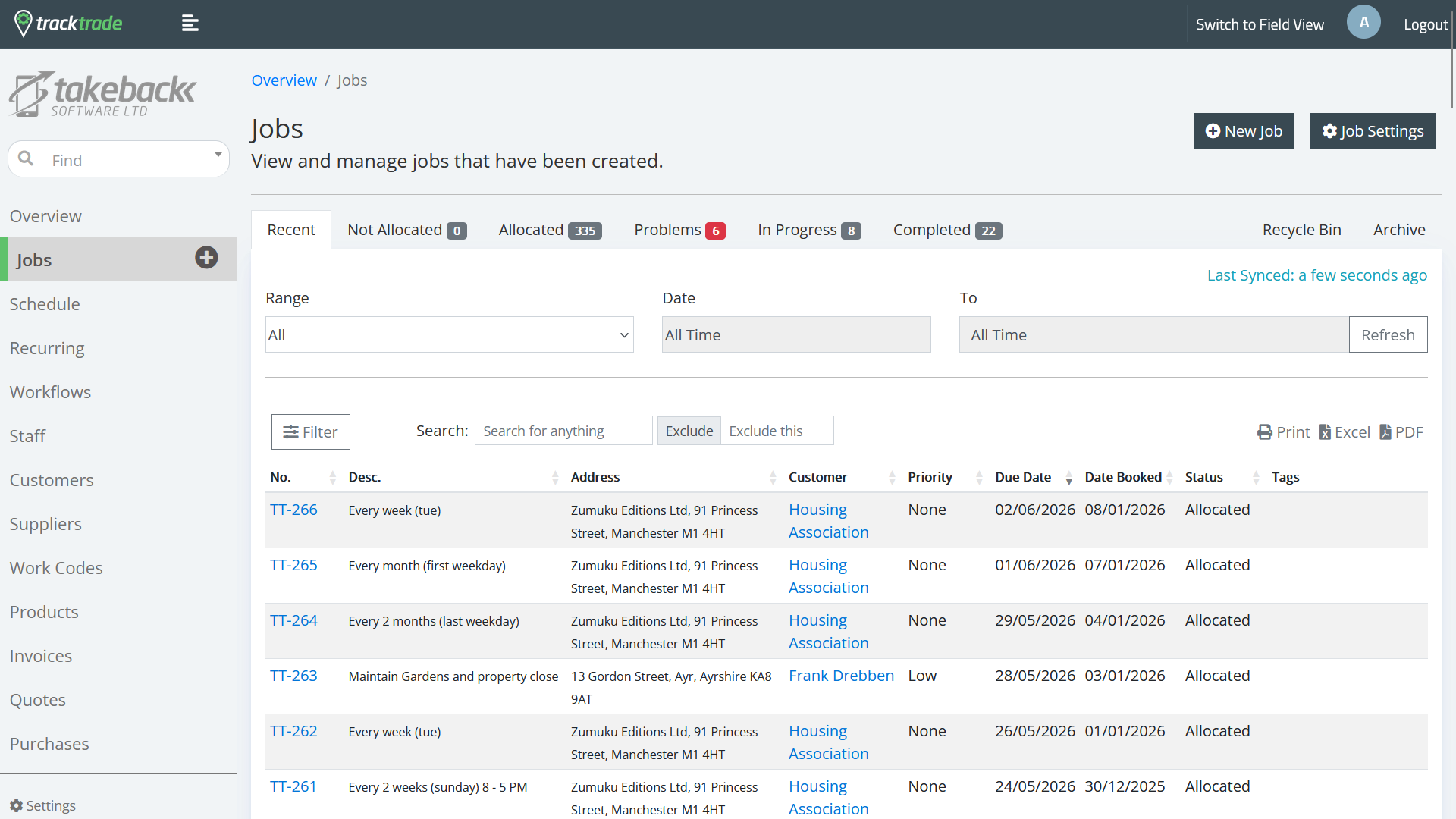
Select Jobs from the side bar. This shows you all Jobs currently in your system.
The Staff and Customers sections are similar in layout and functionality.
While we are in the area, let's create ourselves some Staff and Customers in the next lesson.